

eStatement Enrollment Instructions
1. Log in to your TranscendCU mobile banking account on your smartphone, tablet, or on a web browser by clicking here.
2. Once you see your digital banking dashboard, click the green Documents button that appears on your toolbar.
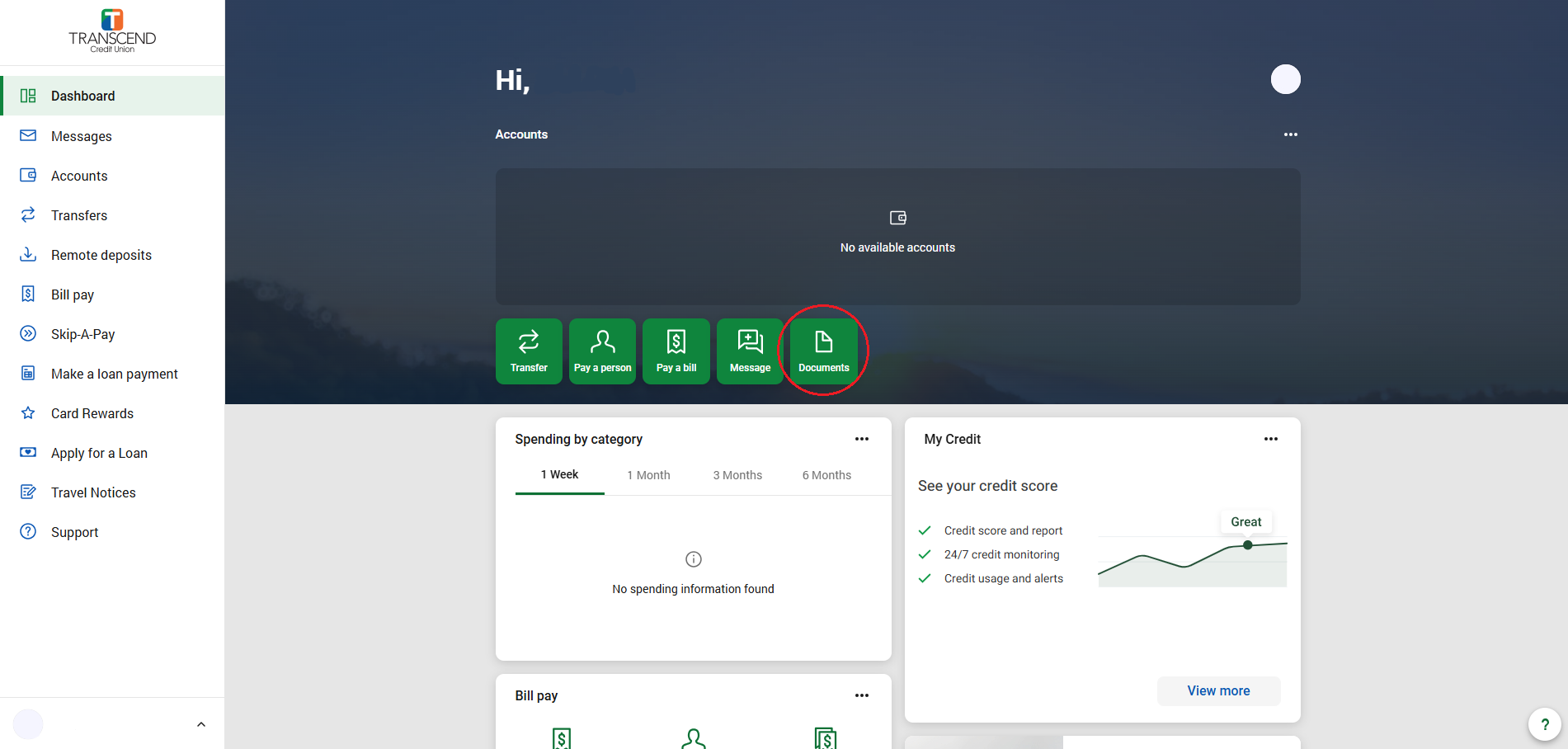
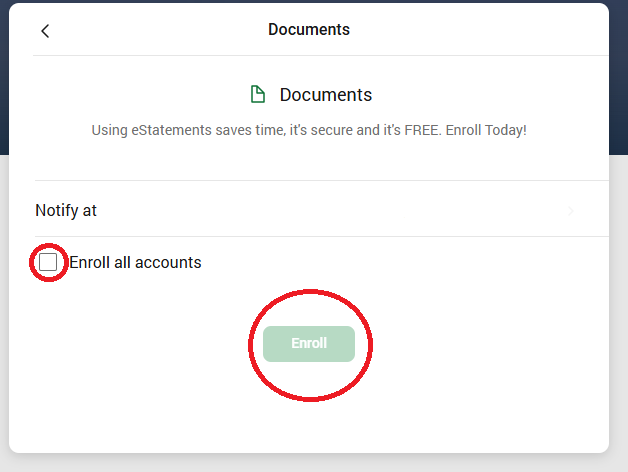
3. Next, you will be shown the email where your eStatements will be sent to. Confirm if this is correct and if you want to enroll all of your accounts or not, and then press the Enroll button.
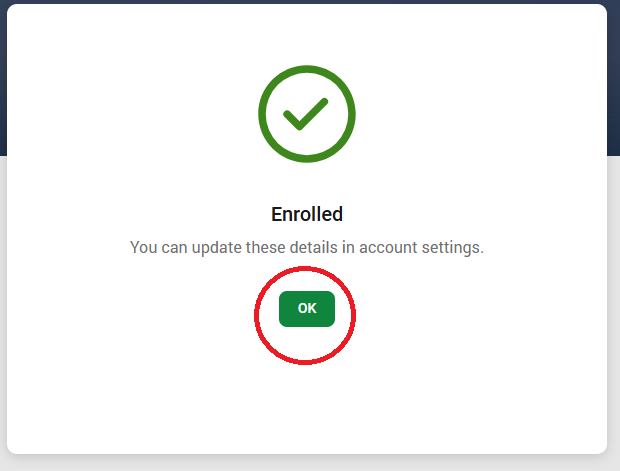
4. Click the green OK button to continue.
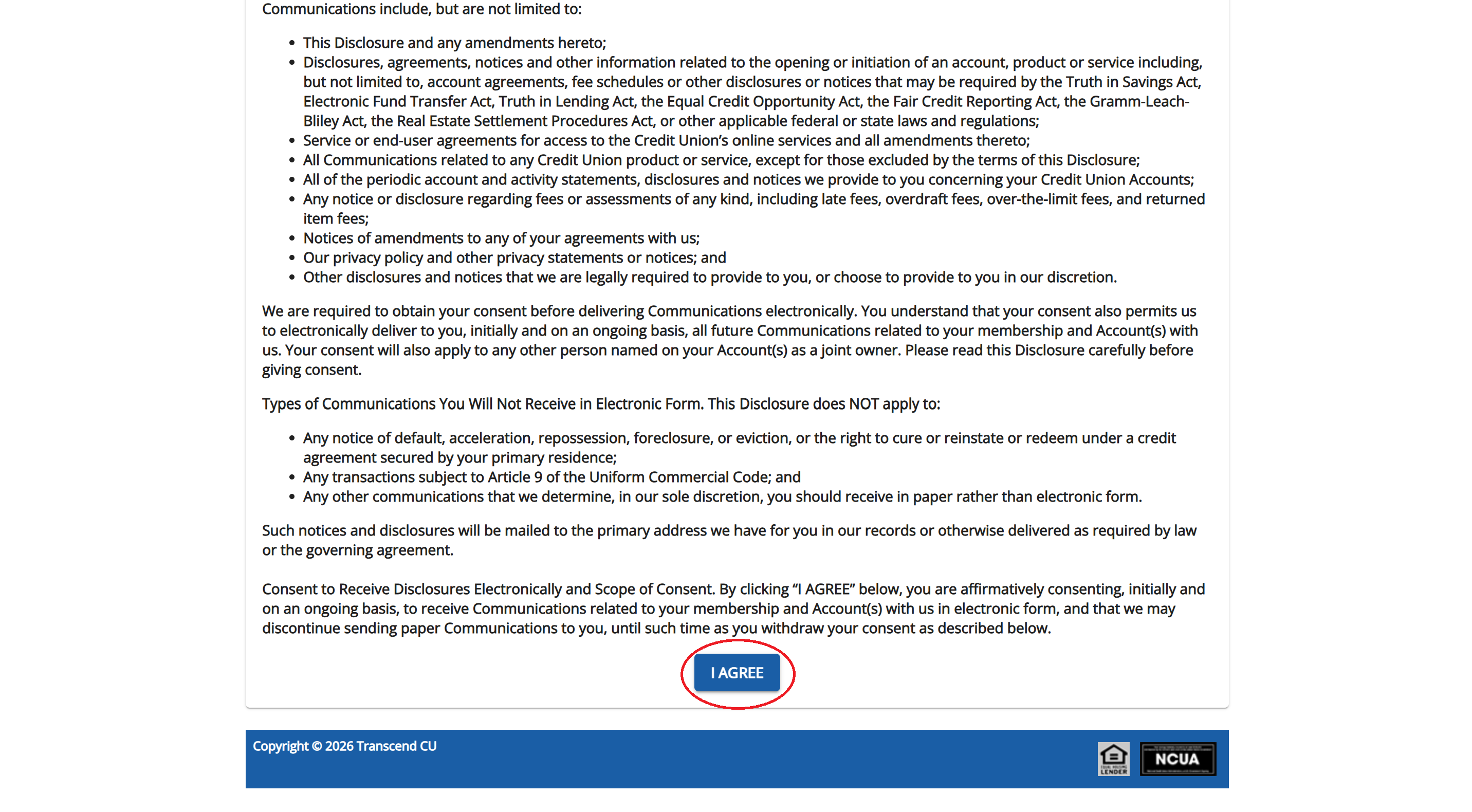
4. Next, you will be taken to another page that will show you our terms and services. Read this carefully and press the I Agree button to continue.
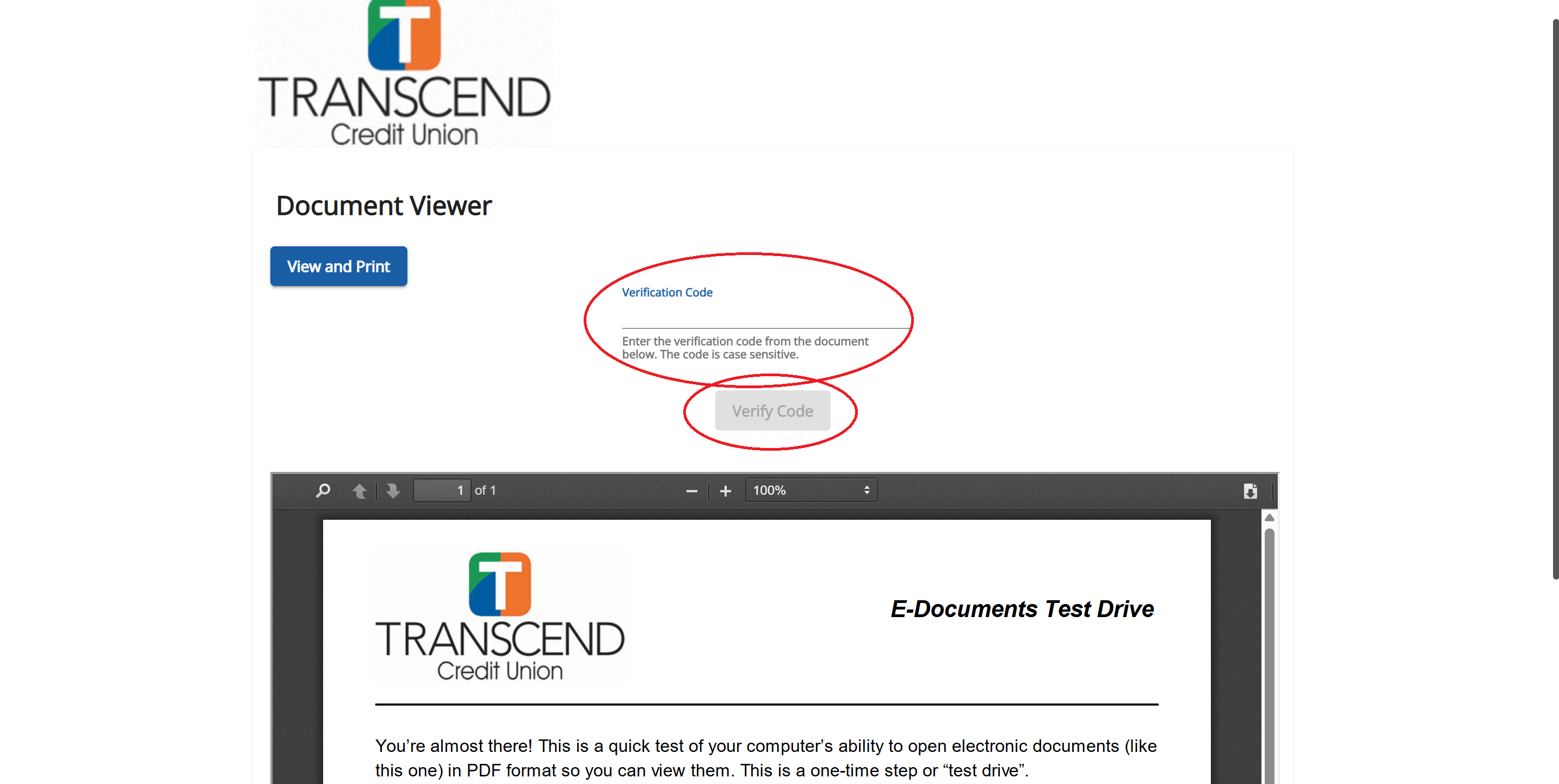
5. On the next page, scroll down to view the E-Documents Test Drive. This is a quick test of your computer's ability to open electronic documents, like your statement. Find the verification code and enter it on the line at the top and press Verify Code to continue.
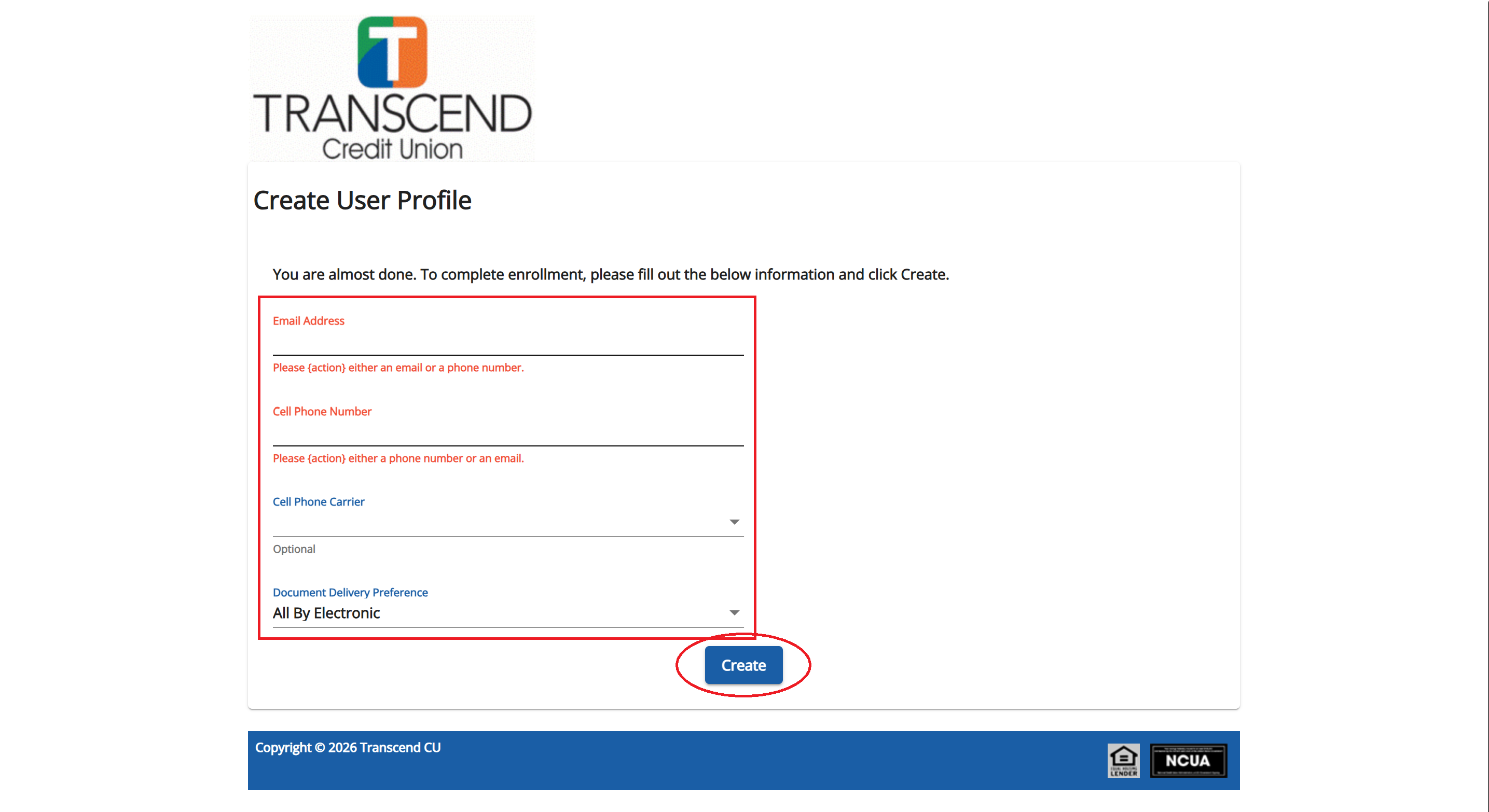
6. Finally, enter your e-mail address, cell phone number, and cell phone carrier to receive notifications about your monthly account statements and then click Create to finalize your eStatement enrollment.
If you have any technical difficulties or have any questions about our eStatement enrollment process, please call (502) 459-3000 to speak with one of our associates.